What you can do
- The free Windows browser and the separately listed AI-assisted browser can have different features and release schedules.
- Use the published build’s address bar, navigation and available saved-page controls for everyday browsing.
- The connected-browser development preview works with Forge Desktop and the Agent Bubble. It is distinct from ordinary standalone browsing.
Examples to try
Research a topic
Search for the topic, open the original sources and compare their dates and claims. When using AI, ask it to distinguish what each source actually says.
Use the connected preview
With matching preview builds, open Forge Desktop, open the Agent Bubble and choose Connect to Forge Desktop in the browser. Ask the bubble to work on the page and inspect the result.
Getting started
- Use Downloads for the published free Windows browser or the browser product page for its separate Store offering.
- Install the selected edition and check its settings and help for the controls available in that build.
- Configure optional AI only if you want it. Provider access and charges are separate from basic browsing.
- For connected control, use the matching desktop and browser preview builds. Connect explicitly and use Chat or Agent in the bubble.
Compatibility
- Websites may require sign-in or restrict automated access. Some interactions remain manual.
- The connected preview is not automatically present in every public browser download.
What to check
- A connection indicator confirms a connection, not completion of a browsing task. Verify the destination, entered text or resulting page.
- Keep passwords and verification steps under your control. Do not assume every website can be automated.
Release status and access
Use the current download and Store pages to distinguish free browsing, AI-assisted editions and development previews. Screenshots below show the current companion development interface with sample content.
Windows download · version 1.1.5
The free browser includes Home beside the address bar, selectable history and bookmarks, a favorites bar, download monitoring, configurable homepage and search engine, and website app windows. Choose a light, system or dark grey tone with Graphite, Sage, Ocean, Violet, Sand or Rose accents.
Download Forge Browser 1.1.5 for Windows · 74.4 MB. The local model is an optional download. This direct installer is currently unsigned; Windows may show a publisher warning.
Updates follow new releases
Open Settings and privacy → Browser updates to check the stable channel. Automatic checks are enabled; automatic download and installation after closing are optional. Integrity is verified before setup runs. Older browser builds need this download once to gain update support.
Connect chat to your chosen AI
- Open Chat, then AI connection.
- Select Forge Desktop API and enter your API key, or select OpenAI, OpenRouter or a custom OpenAI-compatible service. Custom services also require their base URL and model.
- Test the connection and select an available model. Requests use the provider you choose; provider charges may apply.
- Use Clear API key to remove the saved credential and stop the active API reply. This removes the key from this browser; revoke it with its provider if needed.
Saved API keys are encrypted for your Windows account. Ordinary chat is separate from paired agent control, which requires the matching Forge Desktop preview. No model or private API key is bundled in the installer.
The current Agent Bubble interface
Open Forge Desktop, open the Agent Bubble, connect the matching Forge Browser and give the bubble a task. Chat and Agent are separate modes.
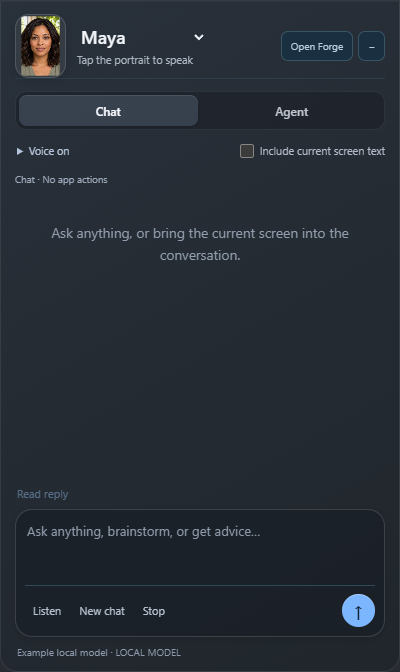 Chat · a conversation beside your work
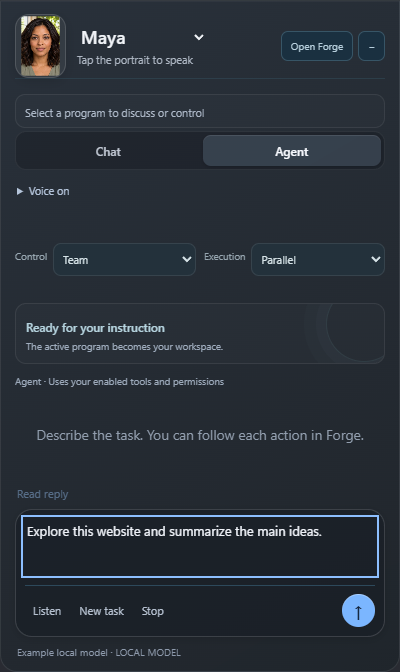 Agent · Single or Team, with execution choices