What you can do
- An agent uses enabled tools to work toward a task outcome. Results depend on the selected model, app support and permissions.
- The Mission Board preview makes progress, shared findings and deliverables visible.
- Single-agent control takes a direct path. Coordinated Team mode can prepare independent work in parallel or run stages in a queue.
Examples to try
Prepare a useful brief
“Research this topic, compare the sources and prepare an editable brief.” Define the audience, scope, output and what counts as complete.
Work on a browser page
With matching connected builds, ask the bubble to read the page and perform a specific supported action. Verify the resulting page rather than relying on a progress label.
Getting started
- Confirm that you are using a build containing the preview; the public Store build may differ.
- Open Forge Desktop and configure an available model.
- Open the Agent Bubble. Choose Chat for conversation or Agent for tool-driven tasks.
- Connect the matching Forge Browser explicitly when you want browser work.
- Choose Single or Team, and the available execution mode. Give a concrete objective and follow the recorded activity.
Compatibility
- Local and API models vary in tool use, visual understanding, context capacity and response format.
- Parallel preparation does not mean several workers can safely type into the same shared screen at once. The preview uses one screen operator.
What to check
- Worker discussion is not proof of task completion. Inspect the file, page or other real result.
- MCP tools depend on configured connectors. MCP resource browsing, reusable prompts and uniform availability across all agent modes are not complete.
- Review permissions and consequential actions. A task can still pause on an unavailable service, app limitation or model error.
Release status and access
The public Mission Board article marks the feature Coming soon. These screenshots show the current development interface using sample content; they do not claim public Store availability or completed autonomous tasks.
The current Agent Bubble interface
Open Forge Desktop, open the Agent Bubble, connect the matching Forge Browser and give the bubble a task. Chat and Agent are separate modes.
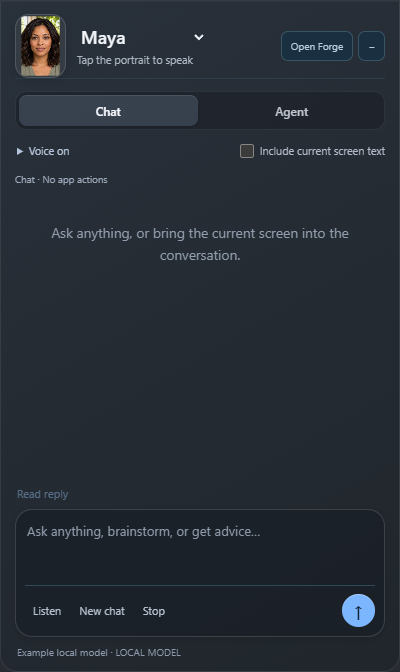 Chat · a conversation beside your work
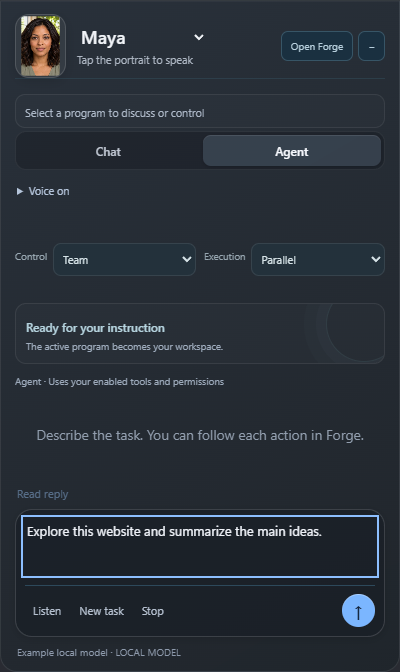 Agent · Single or Team, with execution choices